 SHORNAS BLOG
How to Take a Screenshot on Any Device: Windows, Mac, iPhone and Android
Learn how to take a screenshot on Windows, Mac, iPhone, Android and Chromebook, plus how to capture a full web page and where your screenshots are saved.
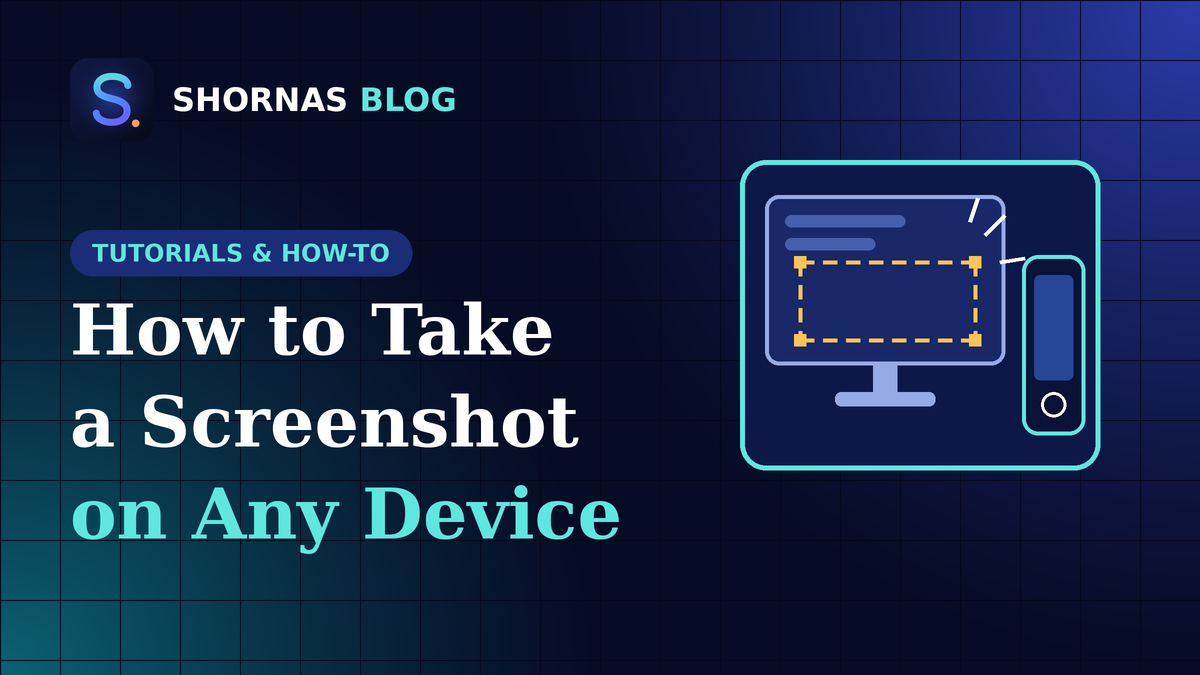
A screenshot is a picture of exactly what is on your screen. It is useful for saving a receipt, sharing an error message with a friend, keeping a recipe or showing someone how to do something. Every device can do it, but the buttons are different. This guide covers the main ones step by step.
How to Take a Screenshot on Windows
- Whole screen: Press the Print Screen (PrtScn) key. The picture is copied, so paste it into Paint, Word or a chat with Ctrl + V.
- Save as a file automatically: Press Windows key + PrtScn. The screen dims for a moment and the file is saved in your Pictures folder, inside a folder called Screenshots.
- Choose an area: Press Windows key + Shift + S, then drag to select the part you want. It is copied, ready to paste.
- Current window only: Press Alt + PrtScn, then paste.
On some laptops you may need to hold the Fn key together with PrtScn.
How to Take a Screenshot on Mac
- Whole screen: Press Shift + Command + 3.
- Selected area: Press Shift + Command + 4, then drag across the area.
- One window: Press Shift + Command + 4, then press the Space bar and click the window.
- More options and screen recording: Press Shift + Command + 5 to open the screenshot toolbar.
By default, Mac screenshots are saved on your desktop.
How to Take a Screenshot on iPhone
- iPhones with Face ID (no Home button): Press the side button and the volume up button at the same time, then let go quickly.
- iPhones with a Home button: Press the Home button and the side (or top) button together.
A small picture appears in the corner. Tap it to mark it up or crop it, or wait and it will be saved to the Screenshots album in the Photos app.
How to Take a Screenshot on Android
- Most phones: Press the power button and volume down button together for about a second.
- Quick Settings: On many phones you can also swipe down and tap a Screenshot tile.
- Gestures: Some brands let you swipe three fingers down the screen or swipe the side of your palm across it. Check Settings and search for "screenshot".
Android phones differ by brand, so if the buttons do not work, look in your phone's settings for the screenshot option.
How to Take a Screenshot on a Chromebook
- Whole screen: Press Ctrl + the Show windows key (the key with a rectangle and two lines, usually above the 6).
- Selected area: Press Ctrl + Shift + Show windows, then drag.
How to Capture a Whole Web Page
A normal screenshot captures only what you can see. To save a long page:
- iPhone (Safari): Take a screenshot, tap the preview, and choose the Full Page tab. It saves as a PDF.
- Android: After a screenshot, many phones show a button such as Capture more or Scroll capture to extend the picture downward.
- Computer (Chrome): Open Developer Tools with F12, press Ctrl + Shift + P (Command + Shift + P on Mac), type "screenshot" and pick Capture full size screenshot.
Where Do My Screenshots Go?
| Device | Usual location |
|---|---|
| Windows | Pictures > Screenshots (or clipboard only) |
| Mac | Desktop |
| iPhone | Photos app > Screenshots album |
| Android | Gallery or Photos > Screenshots folder |
Why Can't I Take a Screenshot?
- The app blocks it. Some banking, video and private apps do not allow screenshots, and you may see a black picture or a message.
- Storage is full. Free some space on your device and try again.
- The wrong buttons. Check your device model and the steps above, or look in settings.
- Work or school device. Some managed devices restrict screenshots.
Stay Safe When Sharing Screenshots
Screenshots often show more than you think. Before sending one, check for passwords, bank details, one-time codes, addresses and private messages, and crop or hide them first. For more ways to keep your accounts secure, read how to protect your online accounts.
Frequently Asked Questions
Does the other person know I took a screenshot?
Usually not, but some apps do notify people in certain features, such as disappearing messages. Check the app you are using.
Can I edit a screenshot?
Yes. Most devices let you crop, draw and add text right after capturing, and free photo editors can do more.
What is the difference between a screenshot and a screen recording?
A screenshot is a still picture. A screen recording is a video of what happens on your screen, with or without sound.
Final Thoughts
Once you know the shortcut for your device, taking a screenshot takes only a second. Try it now, find where it is saved and keep this page for the next time you forget.

Comments (0)